
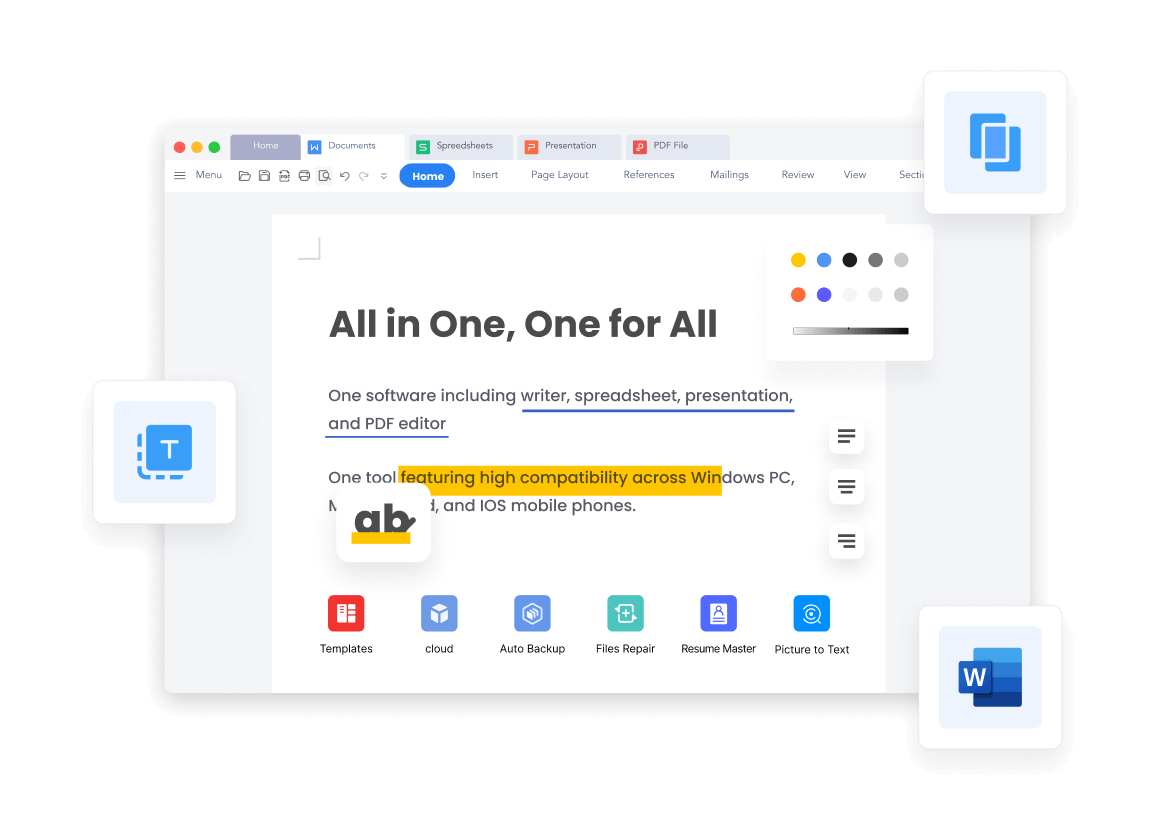
PDF files are one of the most commonly used document formats due to their universal compatibility and ability to preserve formatting across devices. However, there are times when you need to convert a PDF into an editable format, such as Word, Excel, or PowerPoint, to make modifications or extract data efficiently. This is where WPS comes in as a versatile tool to handle PDF conversions easily and accurately. WPS provides a seamless way to convert PDFs into various formats while retaining the original layout, making document management more efficient.
Understanding the Advantages of Using WPS for PDF Conversion
WPS, short for Writer, Presentation, and Spreadsheets, is an all-in-one office suite designed to enhance productivity. One of its standout features is its PDF conversion capability. Using WPS to convert PDFs has several advantages. First, it offers high accuracy, ensuring that the formatting, fonts, and images are preserved in the converted document. Second, it is user-friendly, making it accessible for both beginners and professionals. Third, it supports multiple output formats, giving you the flexibility to choose the format that best suits your needs.
Another significant advantage of using WPS is that it allows batch conversion. If you have multiple PDF files, WPS can convert them simultaneously, saving you time and effort. Additionally, WPS provides an option to convert scanned PDFs into editable formats using Optical Character Recognition (OCR), which is especially useful for digitizing printed documents.
Steps to Convert PDFs Using WPS
Converting PDFs with WPS is a straightforward process that does not require any advanced technical skills. Follow these steps to convert your PDFs efficiently.
Step 1: Open WPS Office
Begin by launching the WPS Office application on your computer. If you do not have it installed, you can download it from the official WPS website. Once installed, open the application and navigate to the PDF tool within WPS.
Step 2: Import the PDF File
Next, import the PDF file you want to convert. Click on the “Open” or “Add PDF” button and browse your computer to select the file. WPS allows you to drag and drop files directly into the interface, making the process faster and more convenient.
Step 3: Choose the Output Format
After importing the PDF, select the format you want to convert it into. WPS supports several formats, including Word (DOC or DOCX), Excel (XLS or XLSX), PowerPoint (PPT or PPTX), and even image formats like JPG or PNG. Choose the format that best matches your needs.
Step 4: Adjust Conversion Settings
Before starting the conversion, you can adjust settings to enhance the output. For example, you can enable OCR for scanned PDFs, select page ranges for conversion, and choose whether to maintain the original layout or simplify the formatting for easier editing. These settings ensure that the converted document meets your specific requirements.
Step 5: Start the Conversion Process
Once all settings are configured, click the “Convert” button. WPS will process the PDF and generate the file in the selected format. The conversion speed depends on the size of the PDF and the complexity of its content, but WPS generally completes the task quickly.
Step 6: Save and Review the Converted File
After the conversion is complete, save the new file to your preferred location on your computer. It is recommended to review the converted document to ensure that all content, formatting, and images are accurately preserved. WPS usually provides excellent accuracy, but a quick review helps verify that everything is in order.
Tips for Effective PDF Conversion Using WPS
To maximize the effectiveness of your PDF conversion with WPS, consider the following tips.
- Keep the original PDF organized. Clear formatting and a well-structured layout make the conversion process smoother and reduce errors.
- Use the OCR feature for scanned documents. This ensures that text is recognized correctly and becomes fully editable.
- Limit batch conversions to manageable file sizes. While WPS supports batch processing, very large files may slow down the conversion or cause errors.
- Regularly update WPS Office. Updates often include improvements to the PDF conversion feature, ensuring better accuracy and performance.
- Backup your original PDFs before converting. This allows you to revert to the original file in case of any discrepancies in the converted version.
Common Use Cases for PDF Conversion
PDF conversion using WPS is useful in various scenarios. For example, students and educators often convert PDFs into Word documents for easier note-taking or editing assignments. Business professionals convert financial reports and invoices into Excel files for data analysis. Presenters transform PDFs into PowerPoint slides to create engaging presentations. Even casual users benefit from converting PDFs into editable formats for personal projects, such as resumes, contracts, or eBooks.
WPS also supports converting PDFs to image formats, which is helpful for creating visual content or sharing documents on platforms that do not support PDF files. By offering multiple output formats, WPS ensures that users can handle almost any document conversion need without relying on multiple tools.
Online vs. Offline PDF Conversion with WPS
WPS offers both online and offline options for PDF conversion. The offline version provides privacy and security, as files are processed directly on your device without being uploaded to a server. This is ideal for sensitive documents, such as contracts, financial reports, or personal information.
The online WPS PDF converter is convenient when you do not have the software installed. It allows you to upload PDFs and convert them instantly through a web browser. While convenient, it is important to consider data privacy when using online converters, especially for confidential files.
Conclusion
Converting PDFs has never been easier thanks to WPS. With its intuitive interface, versatile output formats, OCR capabilities, and batch processing features, WPS provides a reliable solution for both personal and professional PDF conversion needs. By following simple steps, users can transform PDFs into editable Word, Excel, PowerPoint, or image files while preserving formatting and content integrity. Whether you are a student, professional, or casual user, WPS ensures that managing and converting PDFs is efficient, accurate, and hassle-free.
Using WPS for PDF conversion not only saves time but also enhances productivity, making it an essential tool in any digital workspace. Embracing WPS as your go-to PDF converter ensures that your documents are always flexible, editable, and ready for any purpose.